
HeyReach Integration
In this guide, you'll learn how to connect HeyReach to Master Inbox, retrieve your API key, select accounts to sync, and configure label sync options so your LinkedIn outreach replies are centralized in one place.
Connecting HeyReach with Master Inbox allows you to:
Sync conversations
Sync labels between platforms
Centralize LinkedIn outreach replies
Control pipeline management from one place
Step 1 (Get Your HeyReach API Key)
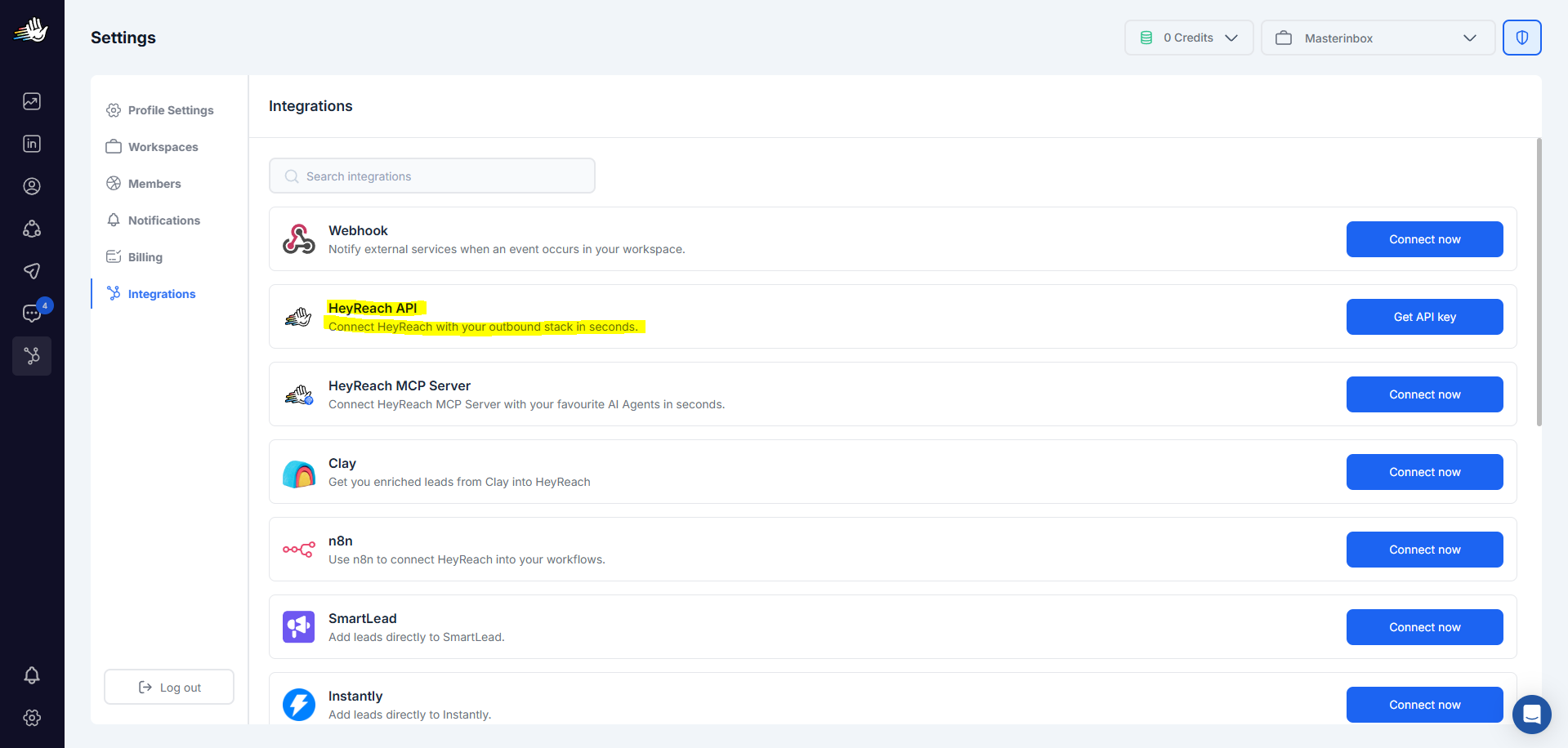
Log in to HeyReach
Go to Settings
Navigate to Integrations
Locate your Heyreach API Key
Copy the API Key
Step 2
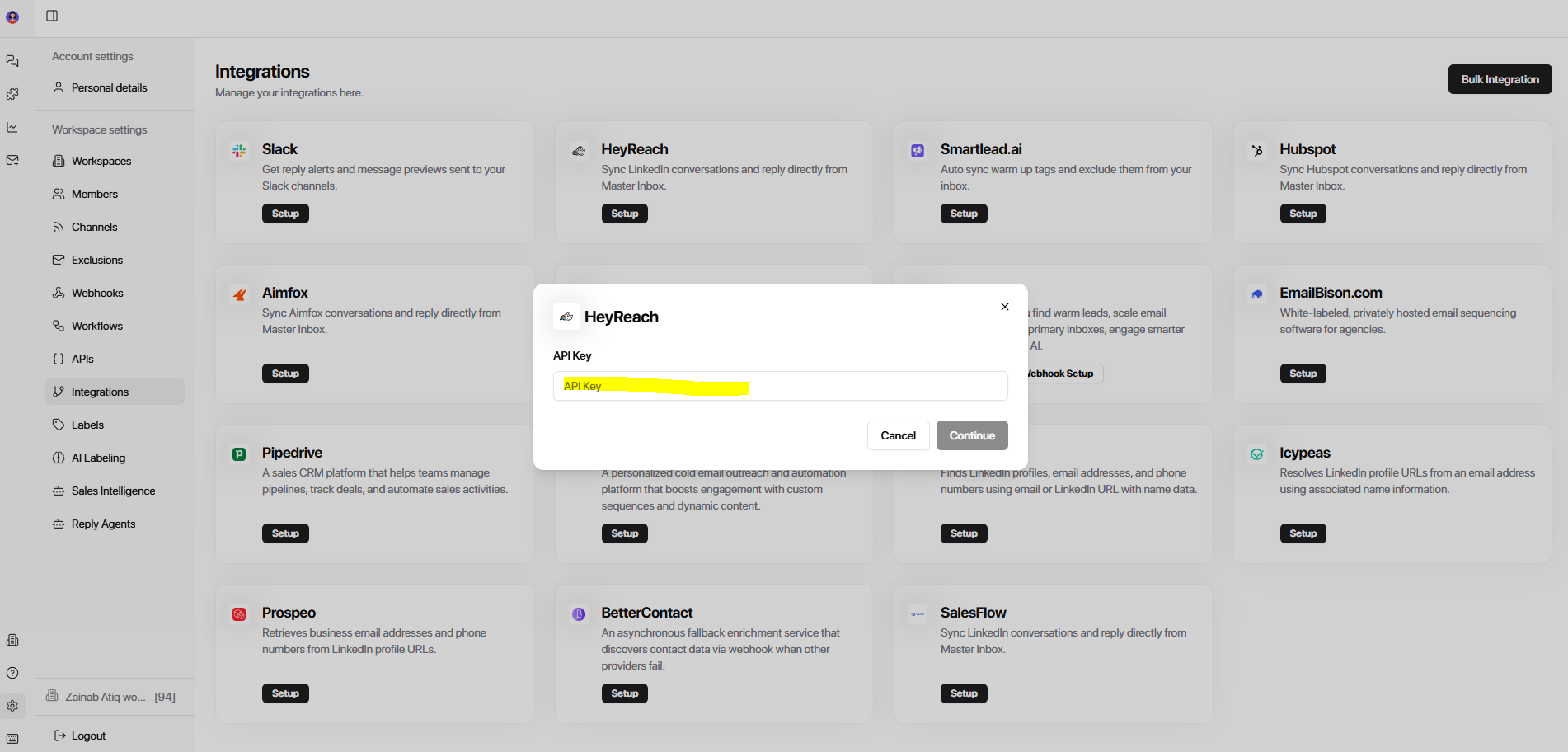
Log in to Master Inbox
Go to Settings
Click on Integrations
Find HeyReach
Step 3
Paste the copied HeyReach API Key
Select the account you want to sync.
Label Sync Options
After connecting, you’ll see label sync controls.
You can choose:
Option 1
Sync HeyReach Labels → Master Inbox
Any label applied in HeyReach
Automatically reflects in Master Inbox
Best when:
HeyReach is your primary outreach tool
Your team labels inside HeyReach
Option 2
Sync Master Inbox Labels → HeyReach
Labels applied inside Master Inbox
Automatically push back to HeyReach
Best when:
Master Inbox is your command center
AI labeling runs inside Master Inbox
Your pipeline logic lives in Master Inbox
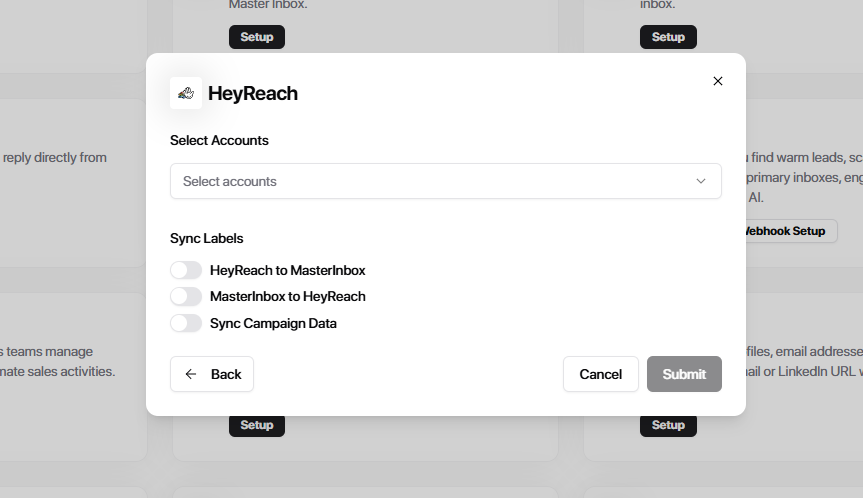
Click submit and connect your HeyReach account with Master Inbox.
Your HeyReach account is now connected. LinkedIn conversations from your HeyReach campaigns will start syncing into Master Inbox automatically — with your label logic applied from the start.