
Inbox vs Thread View
What you'll learn
In this guide, you'll learn the difference between Inbox View and Thread View, when to use each, how to take quick actions, and how to use both views together to work efficiently without missing replies.
Inbox View vs Thread View
Master Inbox has two main ways to view conversations — each built for a different purpose.
Inbox view
Scan, organize, and take quick actions across all messages without opening them.
Thread View
Read the full conversation history and respond thoughtfully in context. Understanding when to use each helps teams move faster without missing replies.
Inbox View (Overview Mode)
Inbox View shows you a high-level list of all incoming messages.
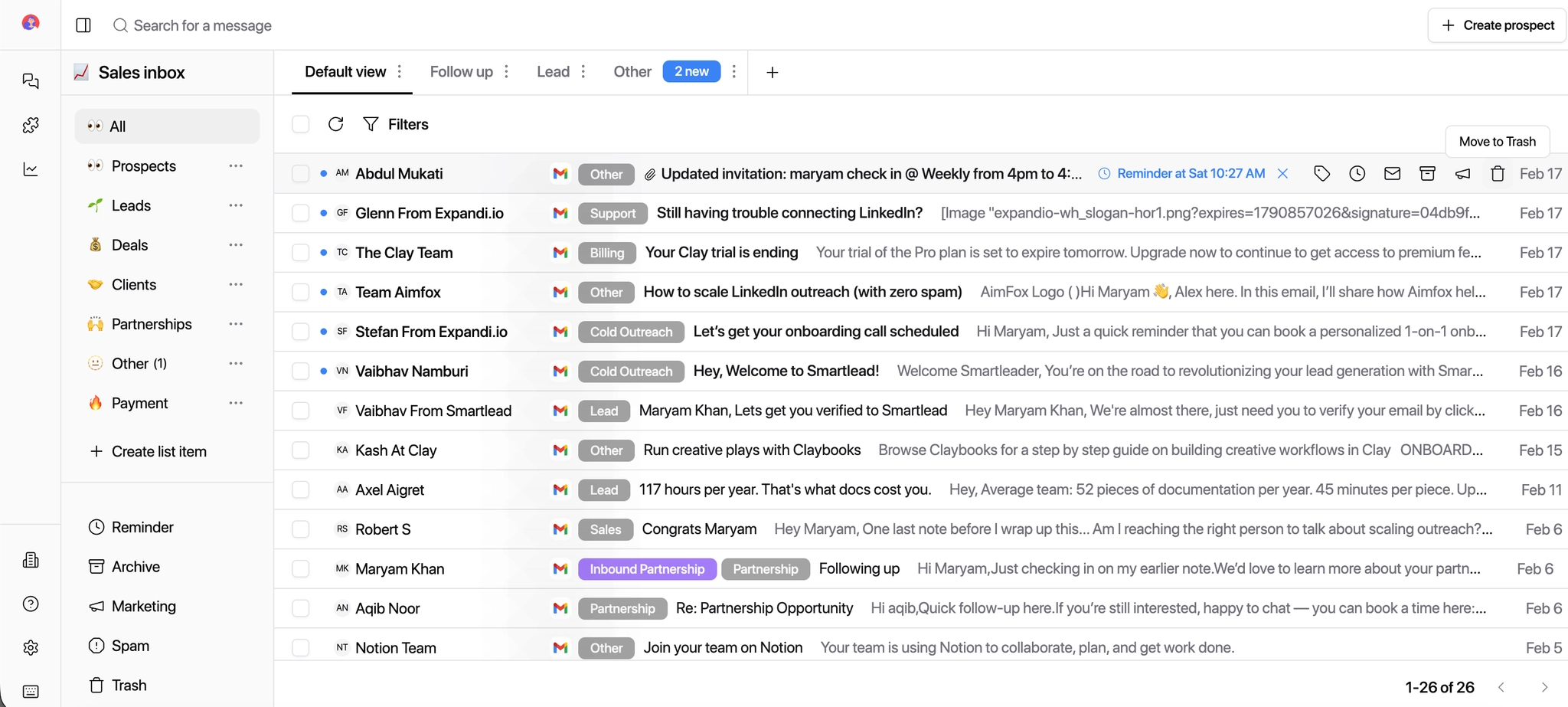
You can view:
All messages (with or without filters)
Replies across email and LinkedIn
Messages grouped by lists (Leads, Deals, Clients, etc.)
This view is designed for speed and triage.
Quick Actions in Inbox View
When you hover over a message, you'll see action icons that let you:

Organize
Add or update Labels
Move to a List (Lead, Client, Deal, etc.)
Mark as Marketing / Promotional
Manage
Set a Reminder
Mark as Read / Unread
Move to Archive
Move to Trash
Best Use Cases for Inbox View
SDRs/BDRs
Quickly scan replies and prioritize hot leads without opening every thread.
Agencies
Triage high-volume inboxes across multiple clients in one pass.
Clients
Get a fast overview of what's happening without needing to reply.
These actions let you organize messages without opening them.
Thread View (Conversation Mode)
When you click and open a message, you enter the Thread View.
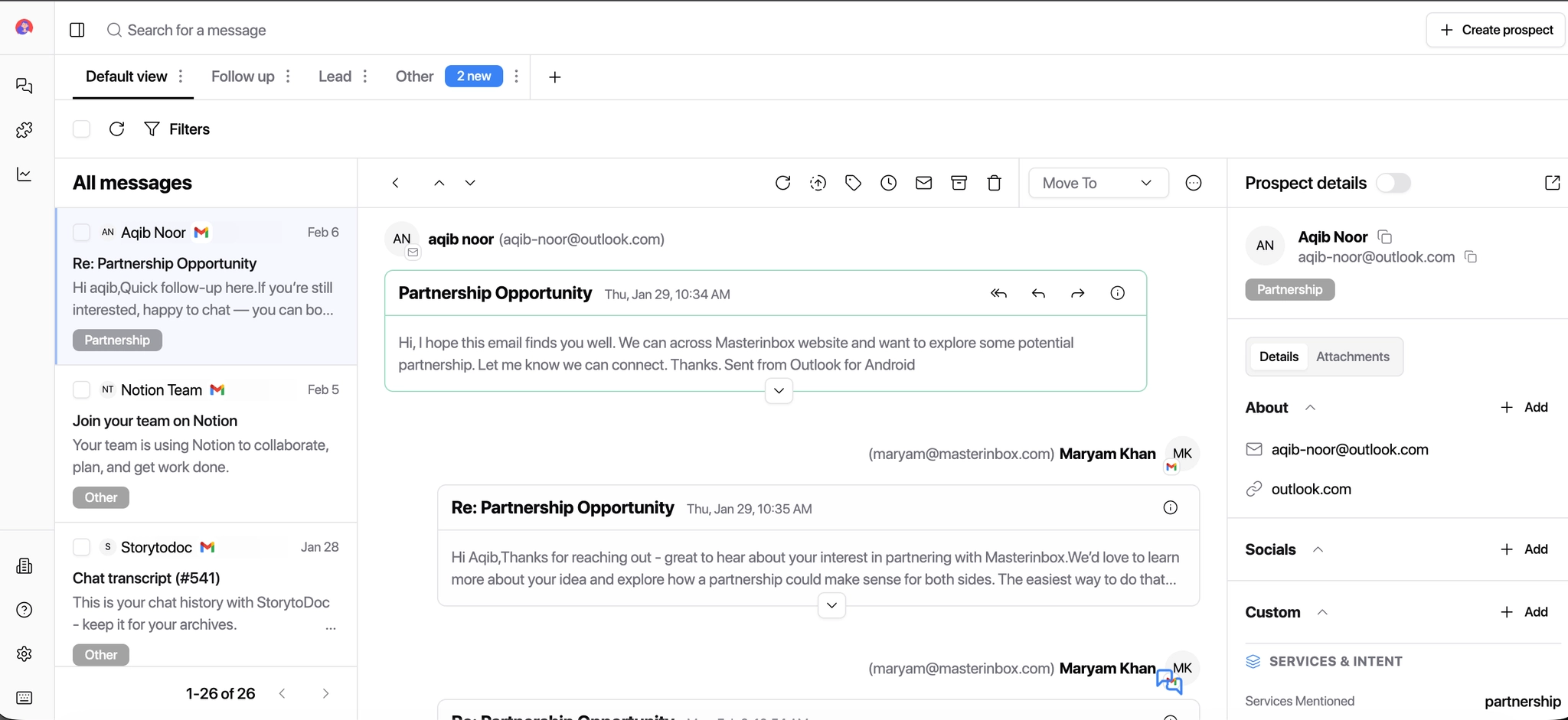
This view shows:
The entire conversation history with that prospect
All previous replies (email + LinkedIn)
Message timestamps
Prospect details (name, email, company, source, labels, etc.)
This is where real work happens.
What You Can Do in Thread View
At the top and side of the conversation, you'll see a set of action icons that help you manage the reply efficiently.

What You Can Do from Thread View
Reply and Manage
Reply or forward messages
Use saved email templates
Add or edit labels
Set reminders or follow-ups
Organize
Mark as read / unread
Archive the conversation
Move to Trash
Move to another list
Integration and Context
Sync to HubSpot with one click (if integrated)
View prospect details — name, email, company, source, and activity — without leaving the thread
Toggle Prospect Details On or Off
If you prefer a cleaner view while replying:
You can toggle off the prospect details panel and turn it back on anytime when you need more context
This is especially helpful when writing longer replies or handling high volumes.
Additional Actions in Thread View
Read the full conversation in context
Reply or forward messages
Use email templates
Add or edit labels
Set reminders or follow-ups
View prospect information alongside the conversation
Best Use Cases for Thread View
SDRs/BDRs
Write thoughtful replies and qualify leads with full conversation context in view.
Agencies
Manage conversations on behalf of clients with all history and details in one place.
Clients
Review full conversations before responding or approving replies.
Use both views together. Start in Inbox View to triage and label quickly, then drop into Thread View only for conversations that need a real response. This two-step habit keeps high-volume inboxes under control.