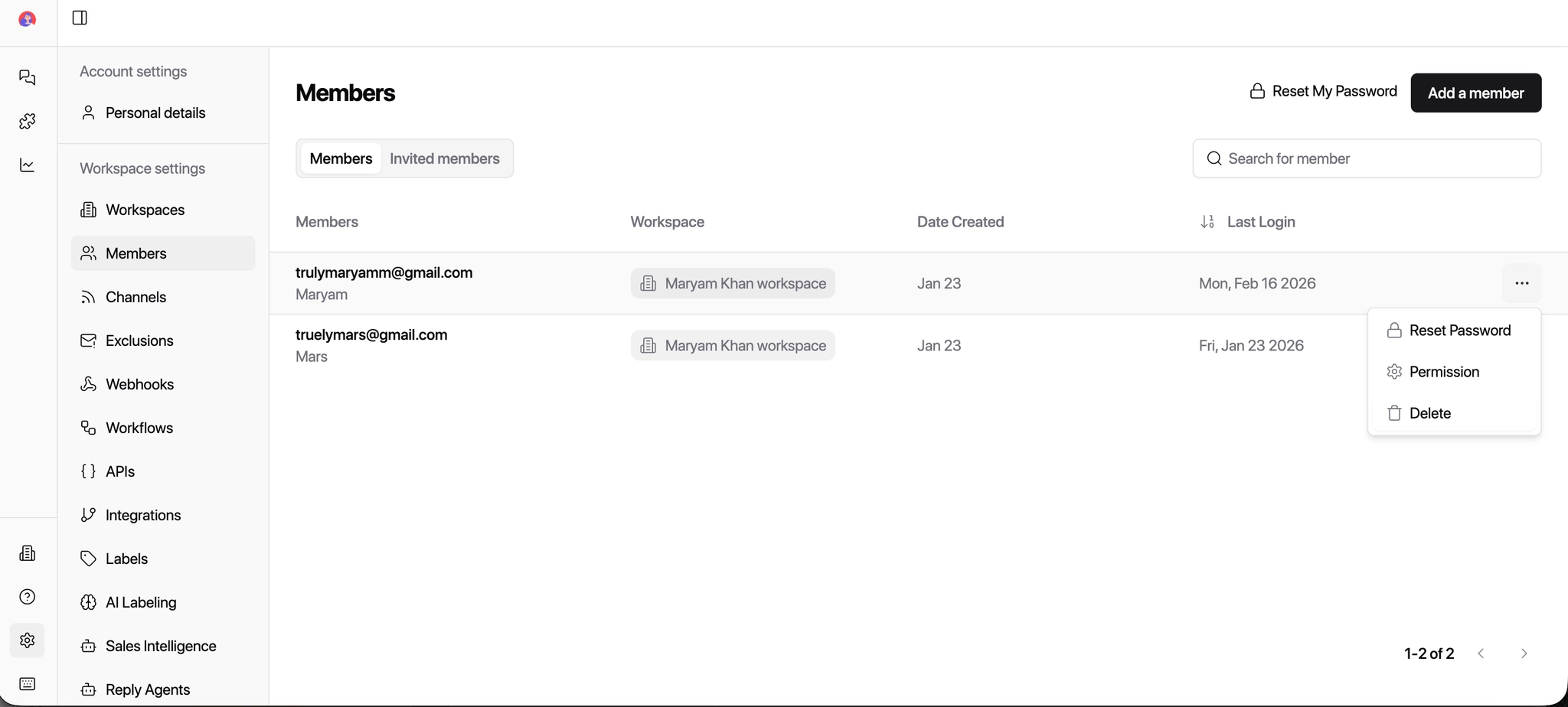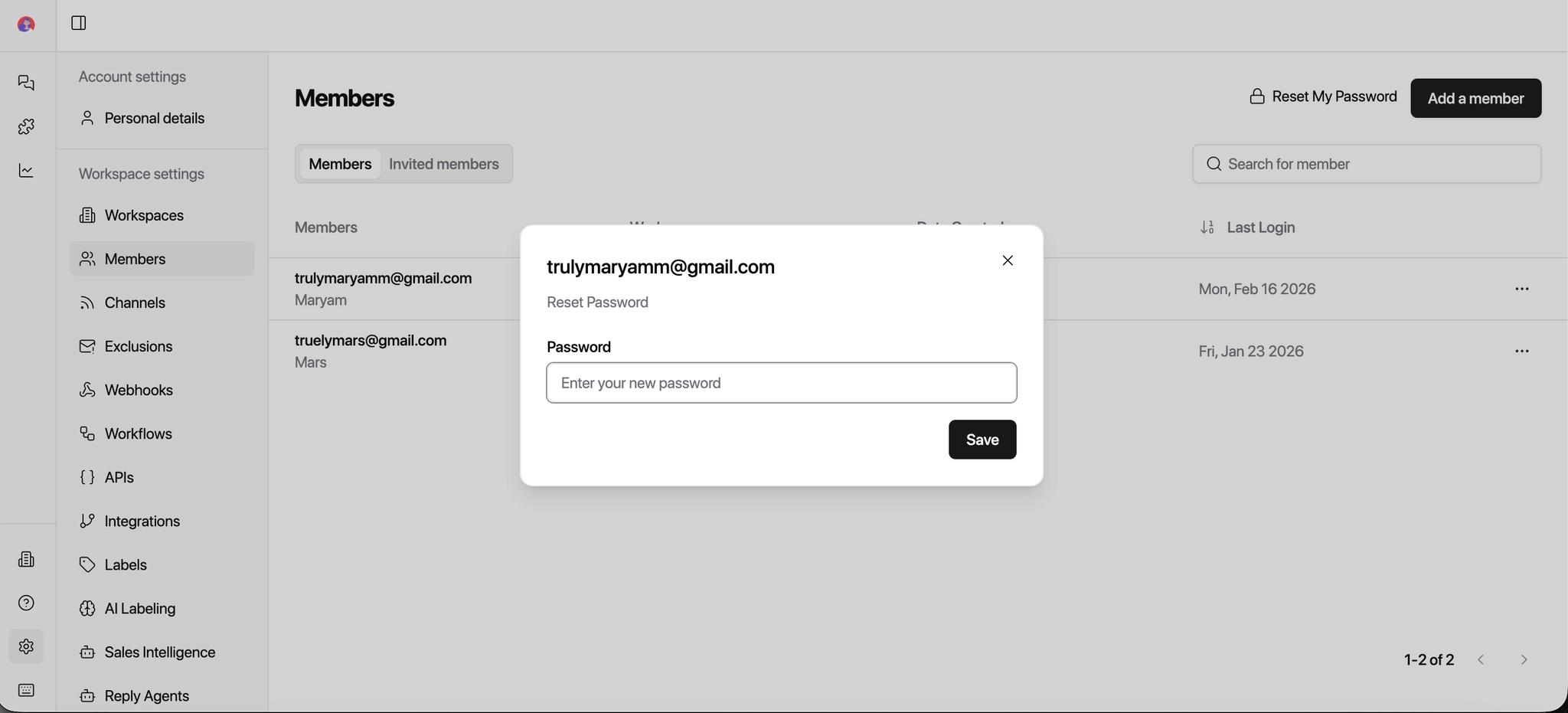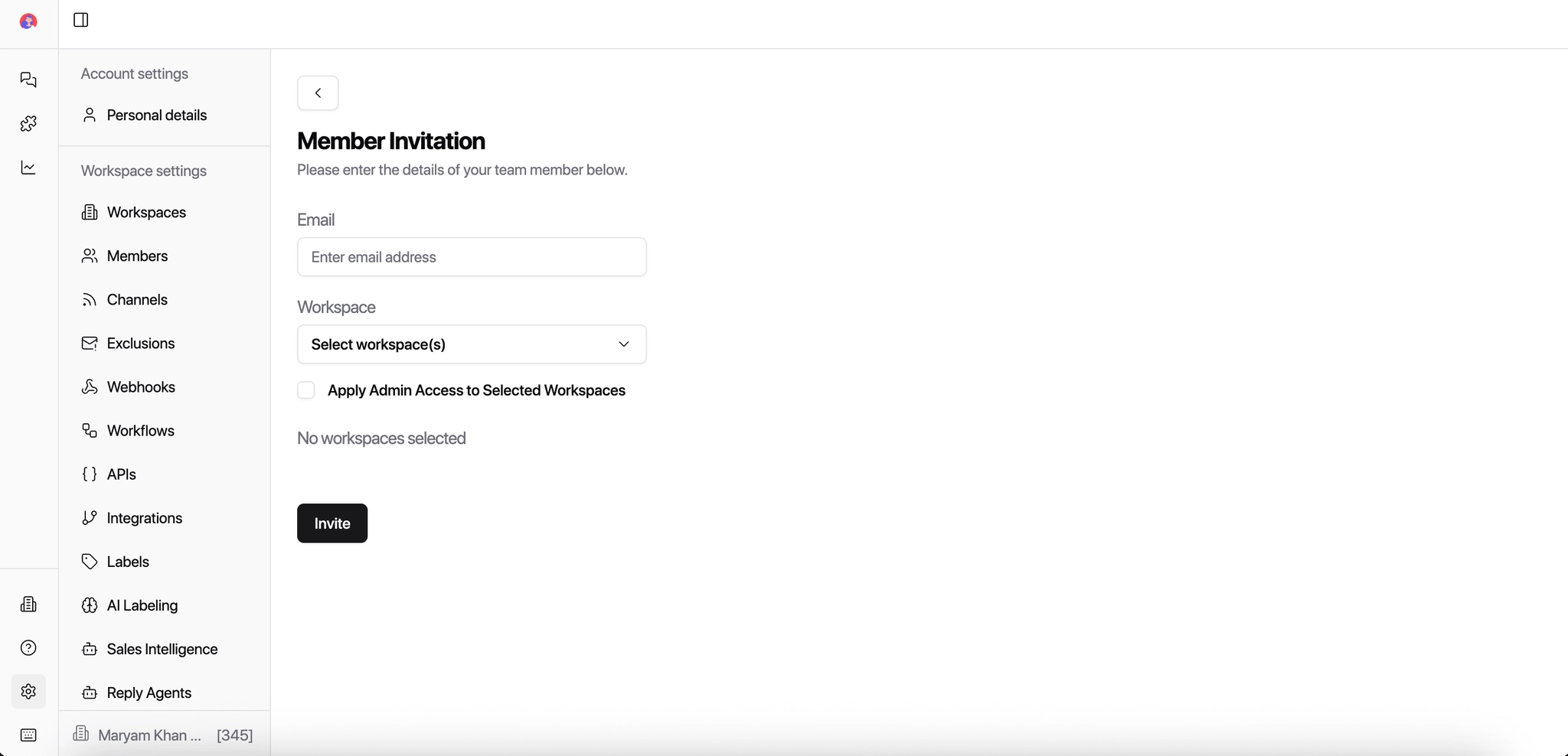
Permissions control what a user can see and do inside a workspace.
This is especially important for agencies, where clients and internal teams work together.
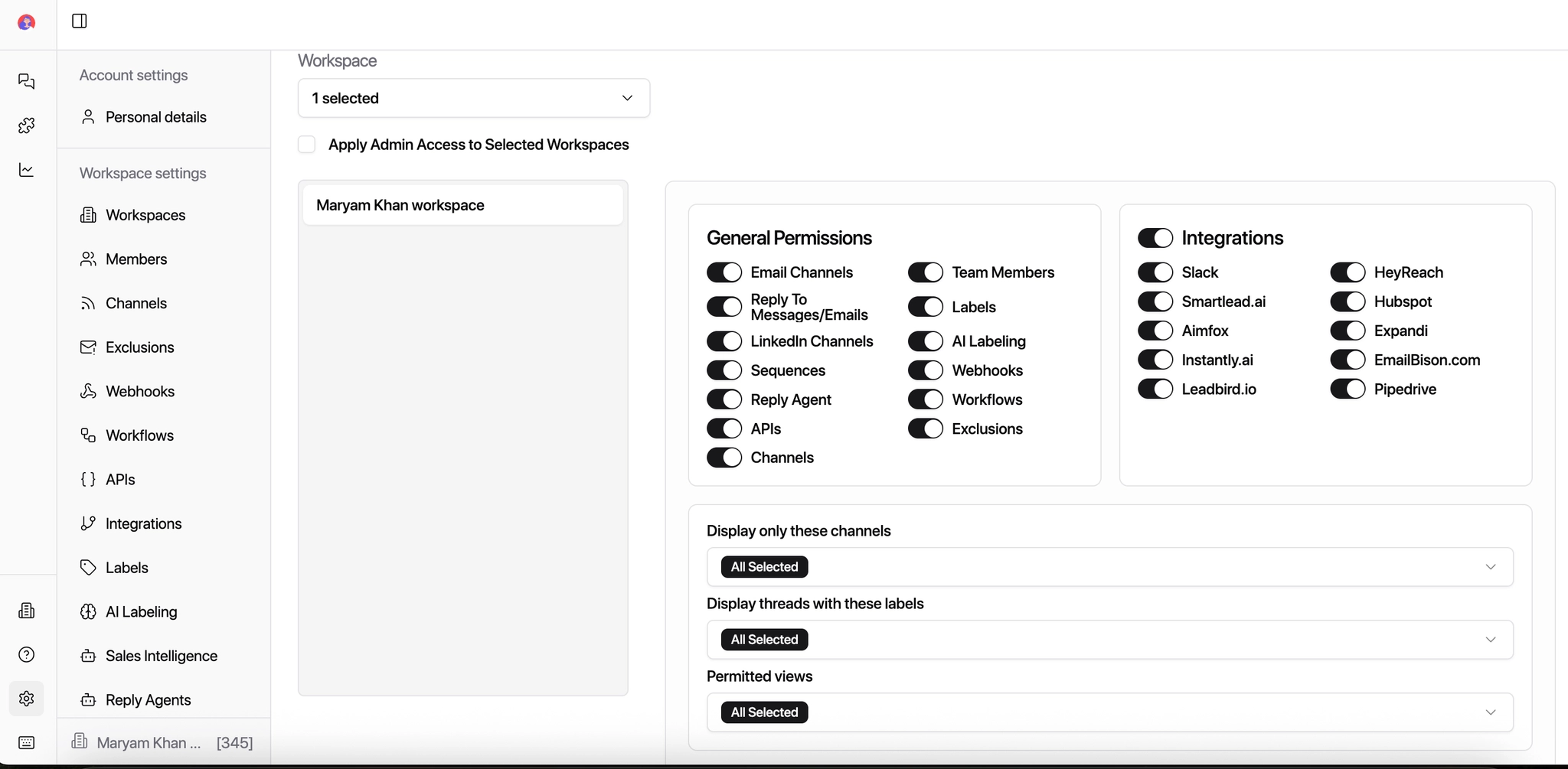
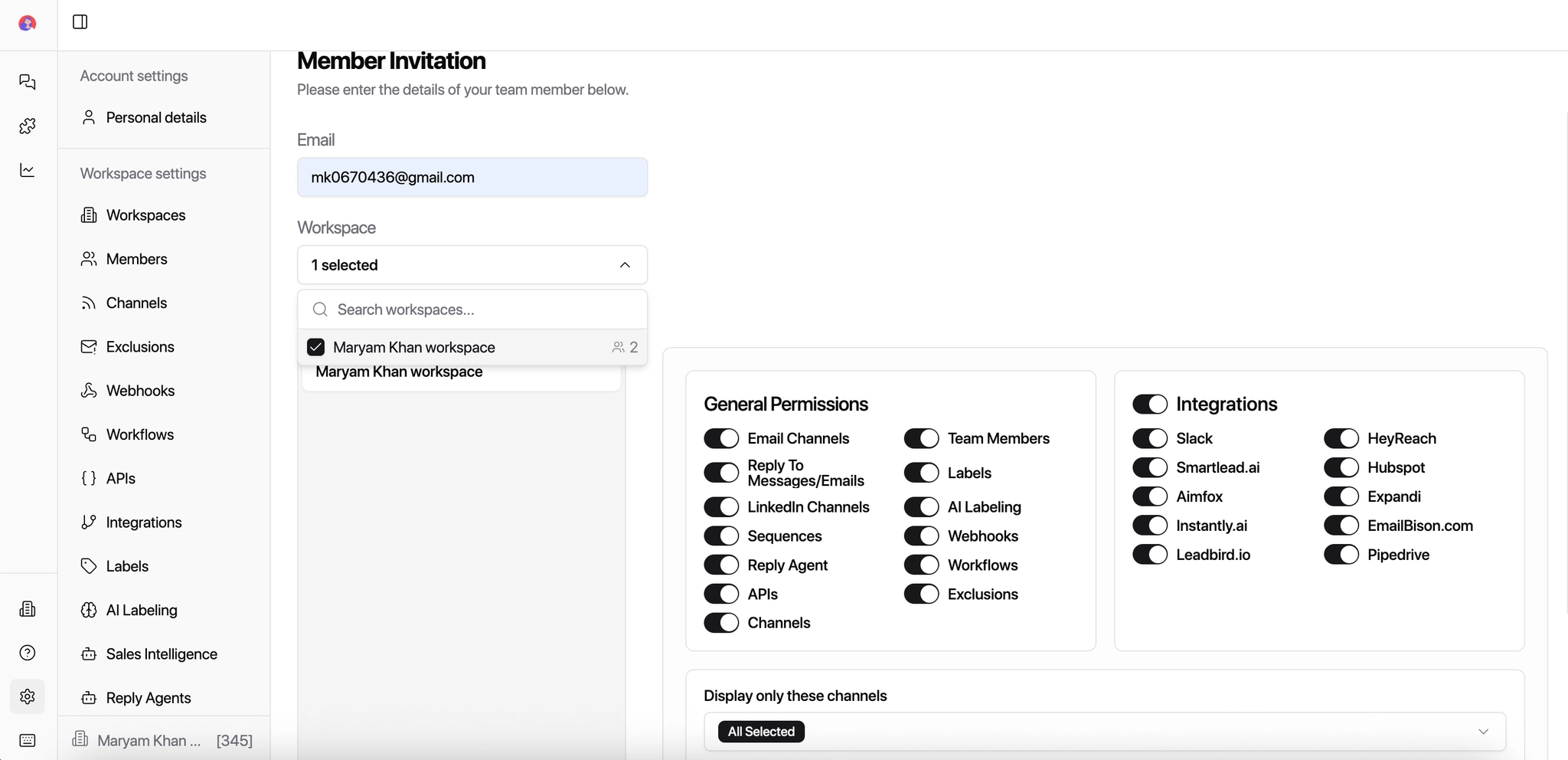
Permissions are grouped into three areas:
General Permissions
Integrations
Visibility Controls (what the user can see)
1. General Permissions (What users can do)
These permissions control access to core product features.
Core inbox & messaging
Email Channels – View connected email inboxes
Reply to messages/emails – Send replies from the inbox
LinkedIn Messages – View and reply to LinkedIn conversations
Sequences – View or manage outbound sequences
Reply Agent – Access AI reply agents
Data & automation
Labels – Apply or manage intent labels (Interested, Follow-up, etc.)
AI Labeling – Configure AI-based intent classification
Workflows – Create automation rules
Webhooks – Send events to external tools
APIs – Developer access
Admin-level controls
Channels – Connect or disconnect inboxes
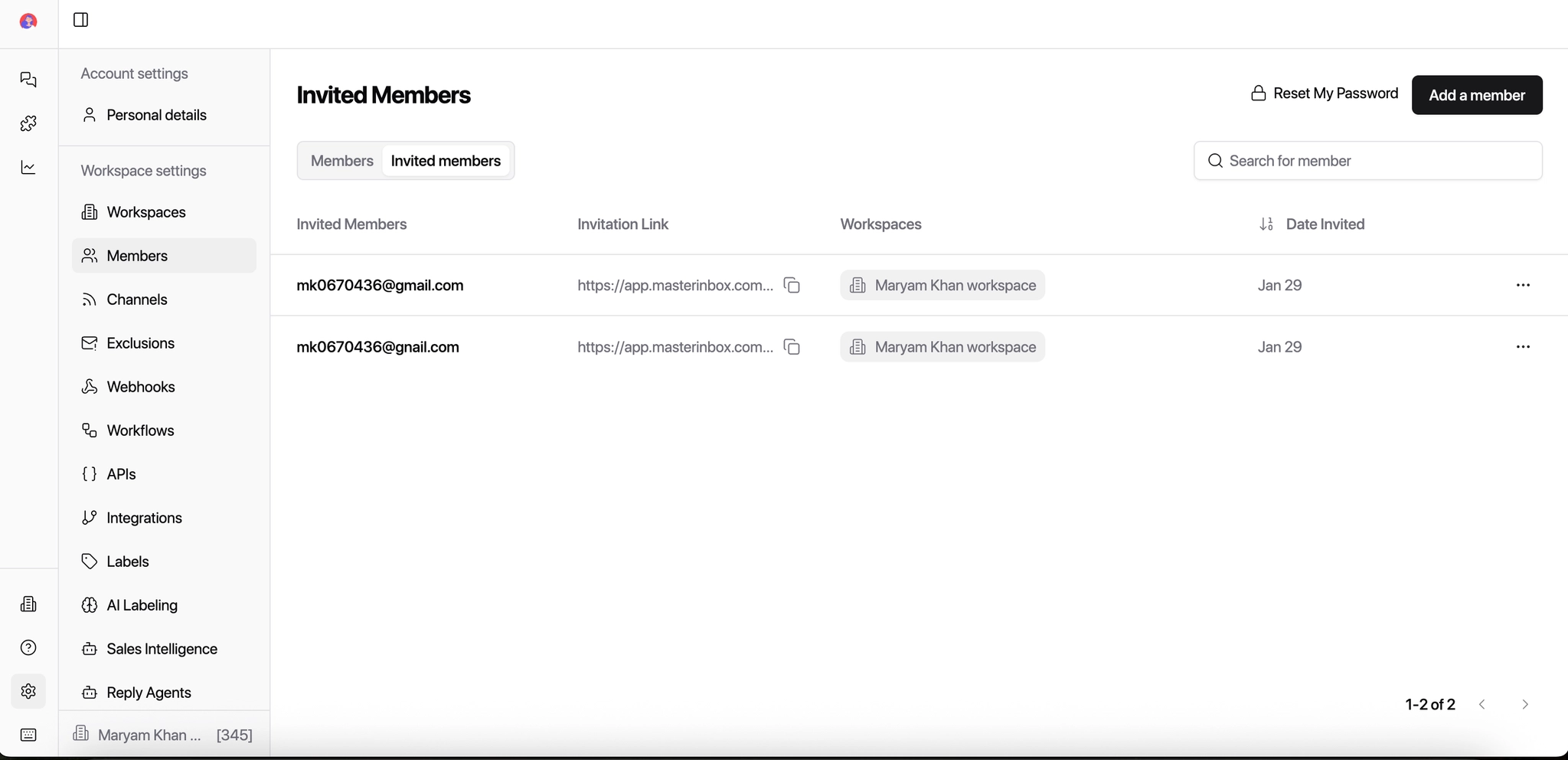
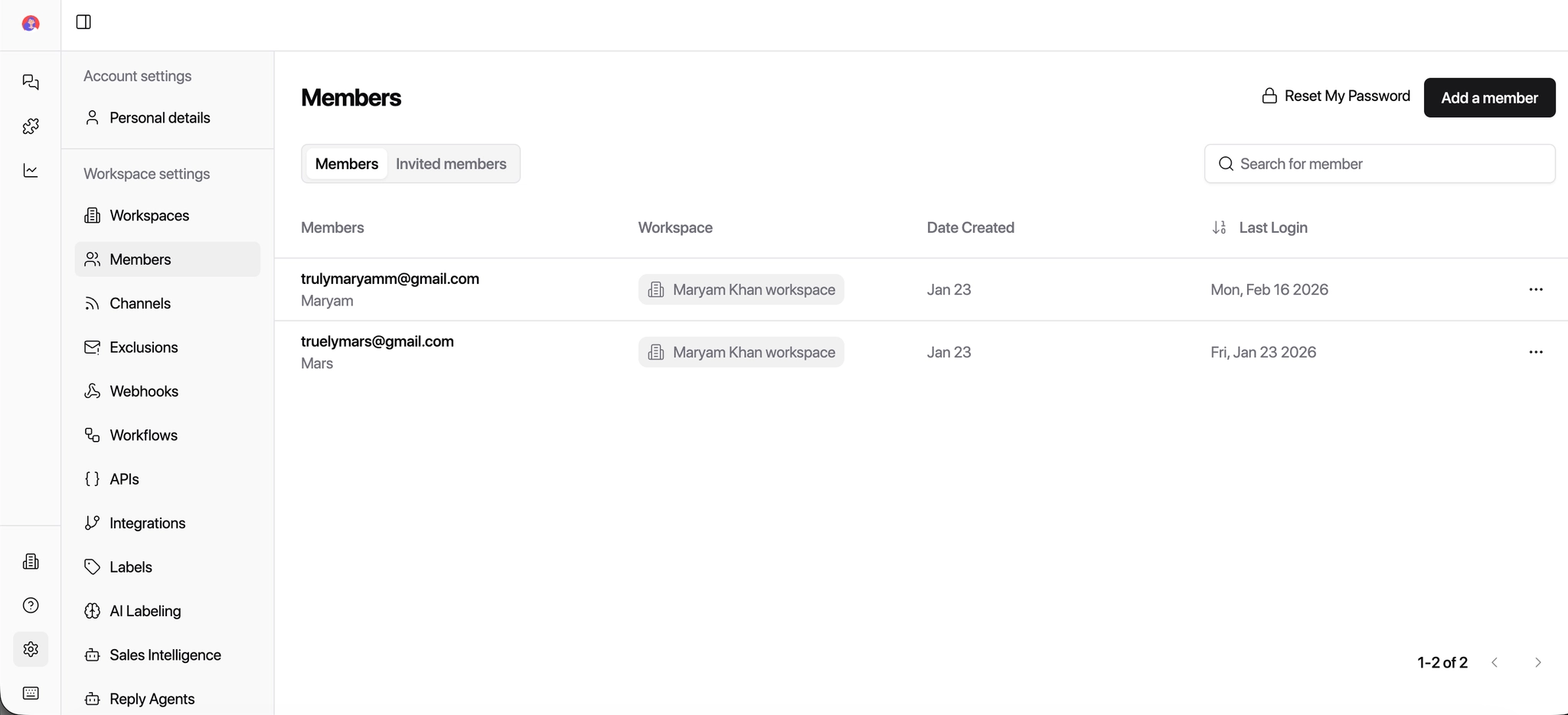
Team Members – Invite or manage users
Exclusions – Manage warmup or system exclusions
2. Integrations (What tools they can access)
These permissions control external tools connected to the workspace.
Examples:
Slack – Notifications & alerts
HubSpot – CRM sync
Smartlead.ai / Instantly.ai / EmailBison – Email outbound tools
HeyReach / Expandi / Aimfox – LinkedIn outbound tools
Leadbird.io – Lead enrichment
Google Drive – File access
Best practice: Only grant integration access to users who actually manage or monitor those tools.
3. Visibility Controls (What users can see)
These settings limit visibility without limiting functionality.
Display only these channels
Display threads with these labels
Permitted views
Role Presets (Recommended)
These are recommended defaults - you can customize them as needed.
Admin (Owners/Ops/RevOps)
For agency owners, operations managers, RevOps leads.
✅ All general permissions
✅ All integrations
✅ Invite and manage team members
✅ Connect and disconnect channels
✅ Full visibility across all channels, labels, and views.
Why:
Admins manage setup, integrations, automation, and reporting.
SDR (Inbound/Qualifications)
For inbound reps handling replies and qualification. ✅ Email and LinkedIn replies ✅ Labels (apply only) ✅ Reply Agent (use, not configure) ❌ No integration setup ❌ No channel or team management 🔒 Assigned channels and qualification labels only
Why:
SDRs focus on responding fast and qualifying intent, not system setup.
BDR (Outbound/Follow-Ups)
For outbound reps managing conversations and follow-ups. ✅ Email and LinkedIn replies ✅ Sequences (view) ✅ Labels (Interested, Follow-up, Objection) ❌ No integrations or workflows 🔒 Outbound-related channels only
Why:
BDRs work replies and move conversations forward — no admin access needed.
Clients (Read-only/Limited)
For clients who need visibility without risk of changes. ✅ View conversations ✅ Reply (optional, if approved) ❌ No labels, automations, or integrations ❌ No team or channel management 🔒 Restricted visibility only
Why:
Prevents accidental changes while keeping clients informed.