
Move Prospects Between List Items
What you'll learn
In this guide, you'll learn what List Items are, why moving prospects between stages keeps your inbox actionable, and how to move one or multiple conversations in a few clicks.
Move Prospects Between List Items:
Organize conversations by intent so your team always knows who to follow up with and who to nurture next.
What are List Items?
List Items are customizable stages you use to organize conversations.
They are not hard-coded and can be named anything based on your workflow.
You decide what each list represents. Common examples include: Leads, Prospects, Deals, Clients, Partners, and Other. Build your stages around how your team actually works.
Why Moving Conversations Matters
As conversations progress, they change stage. Keeping them in the right list helps your team stay organized and focused.
Stay Organized
Track where each conversation stands at a glance — no digging through a cluttered inbox.
Stay Focused
Separate sales, clients, and internal messages so the right people see the right conversations.
Stay Actionable
Keep the inbox clean so follow-ups, deals, and client conversations never get buried.
When Should You Move a Conversation?
Move a conversation when: a prospect becomes a deal, a lead turns into a client, a reply is no longer sales-related, or ownership and intent changes. Keeping stages current is what makes your inbox useful.
How to Move Prospect Between List Items
List items help you keep conversations in the right stage.
Open your workspace inbox.
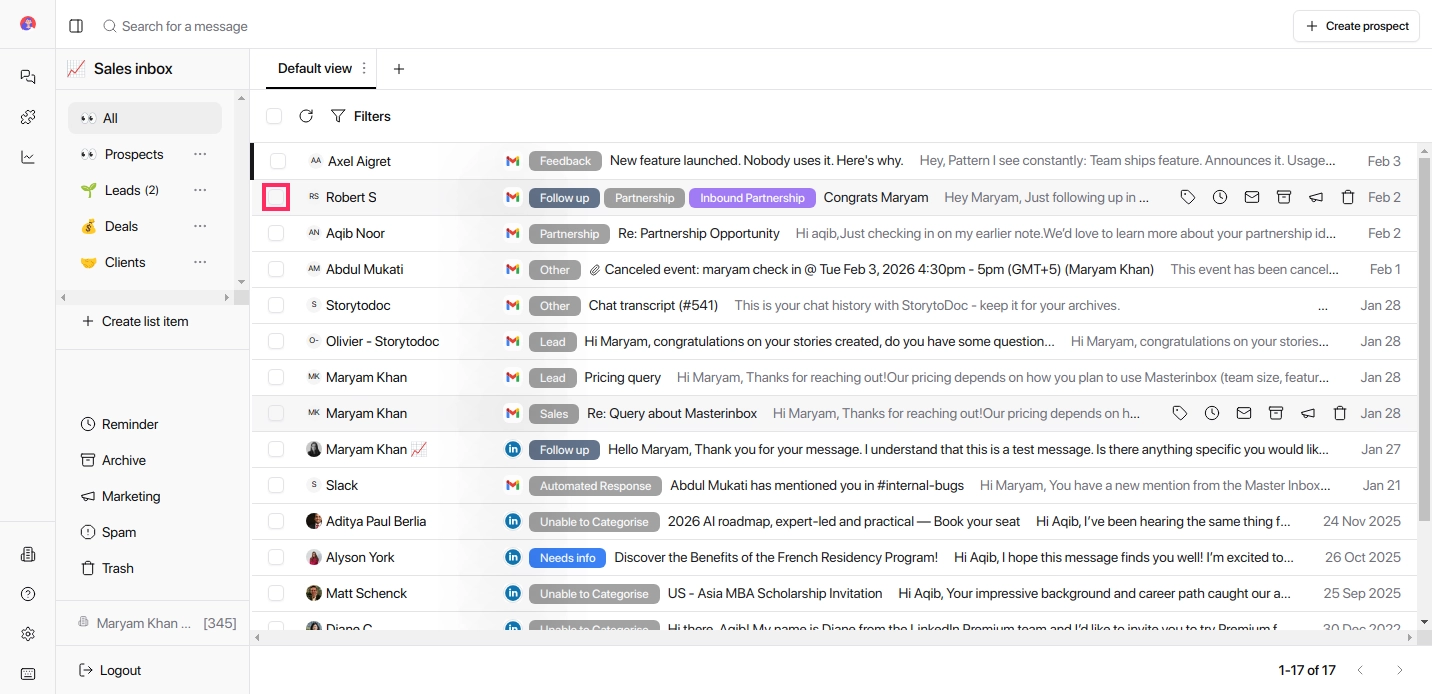
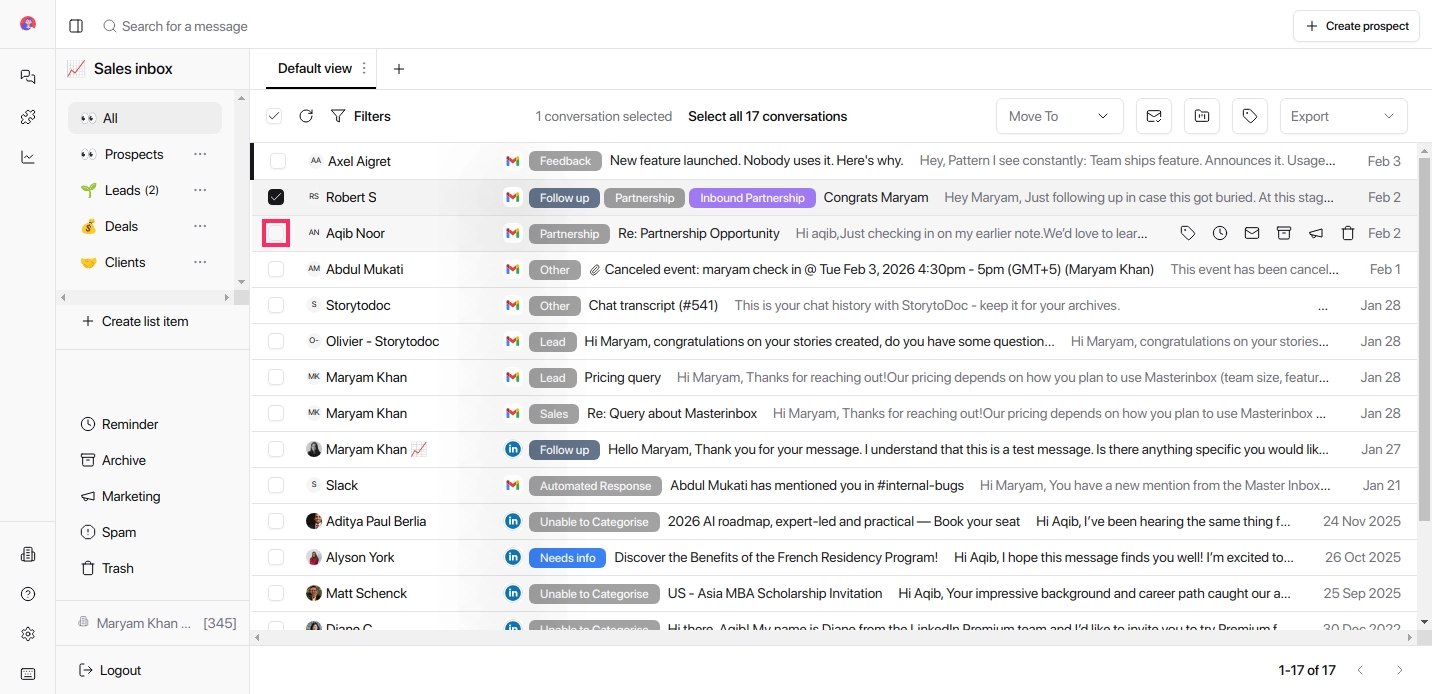
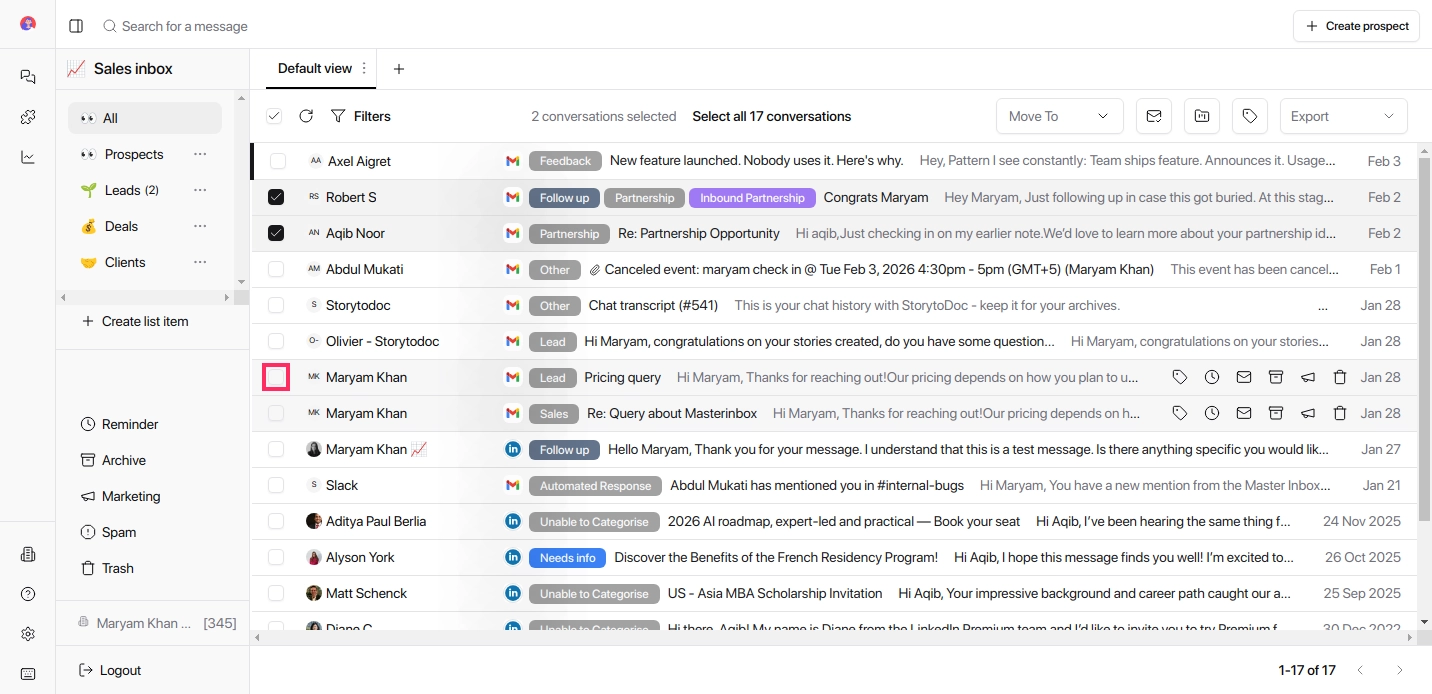
Select one or more Prospect; Click the checkbox next to the conversations.
Click Move To
(Located at the top of the conversation list)
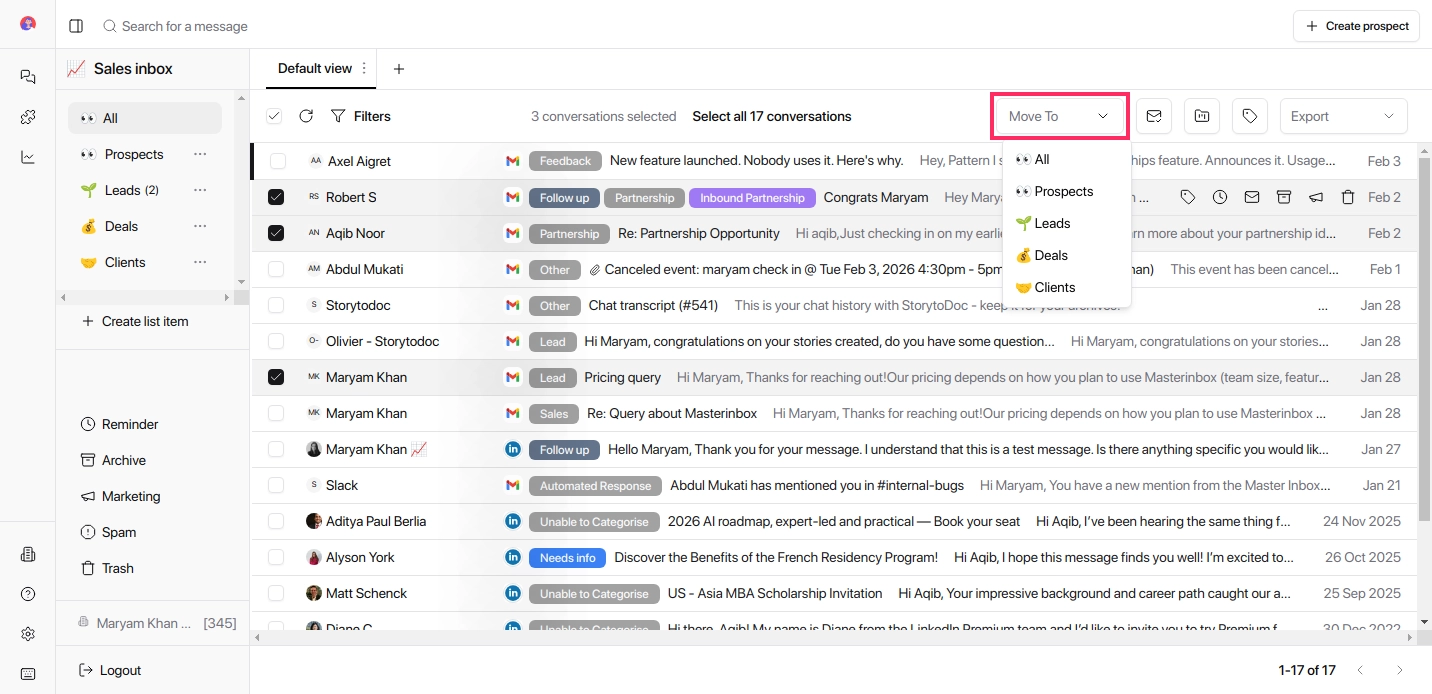
Select a list item
Choose the destination stage (e.g. Lead, Deal, Client, or any custom list).
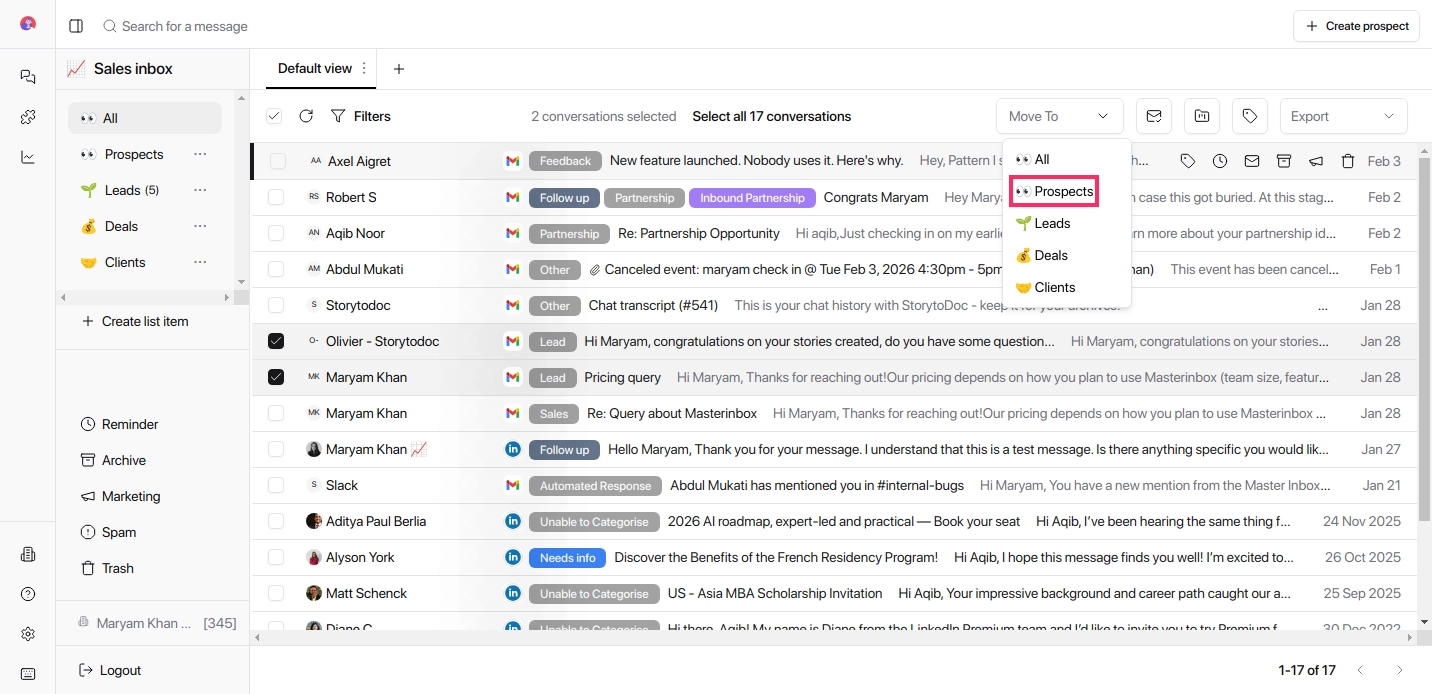
Confirm the move and the conversation updates instantly.
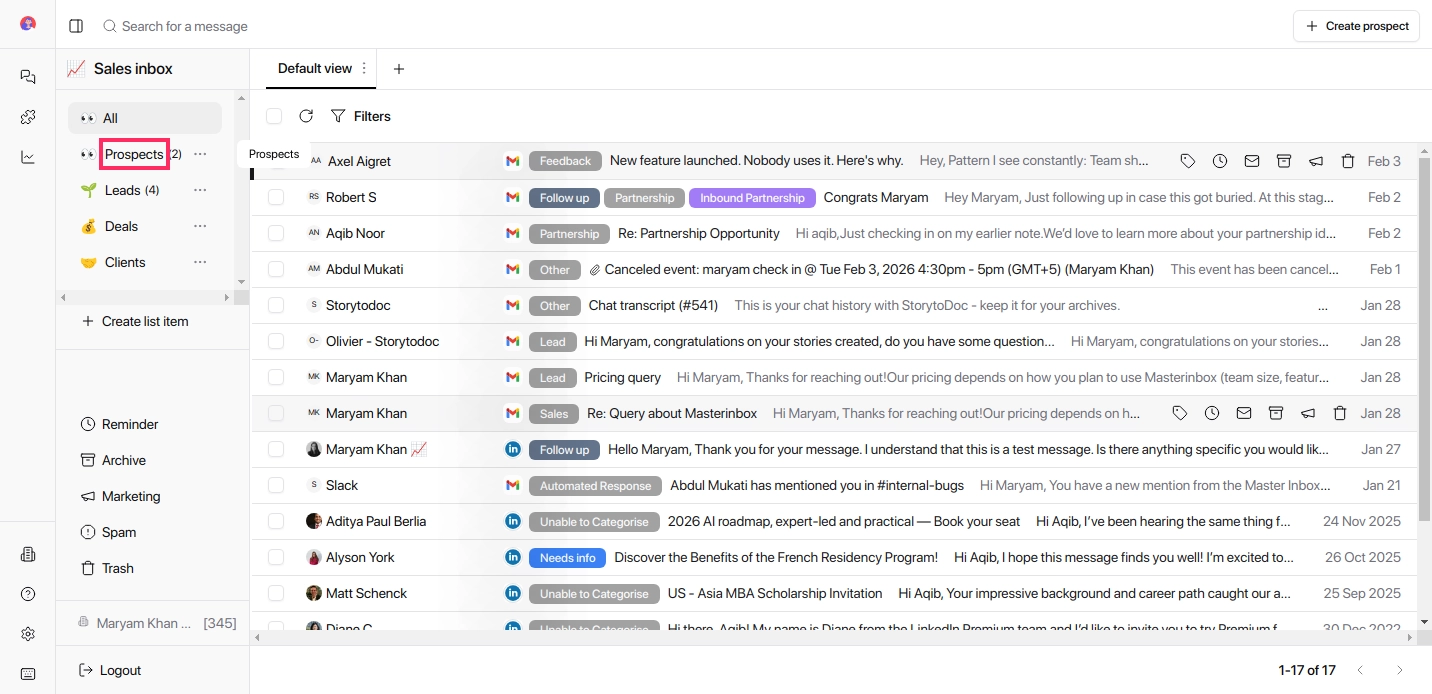
The conversation moves immediately and appears in the correct list stage. Your team always sees an up-to-date view of where every prospect stands — from first reply to closed client.